

 InfoSearched
Setting up a gaming PC has nothing to do with screwdrivers once the box is built — it’s all about plugging things in the right way.
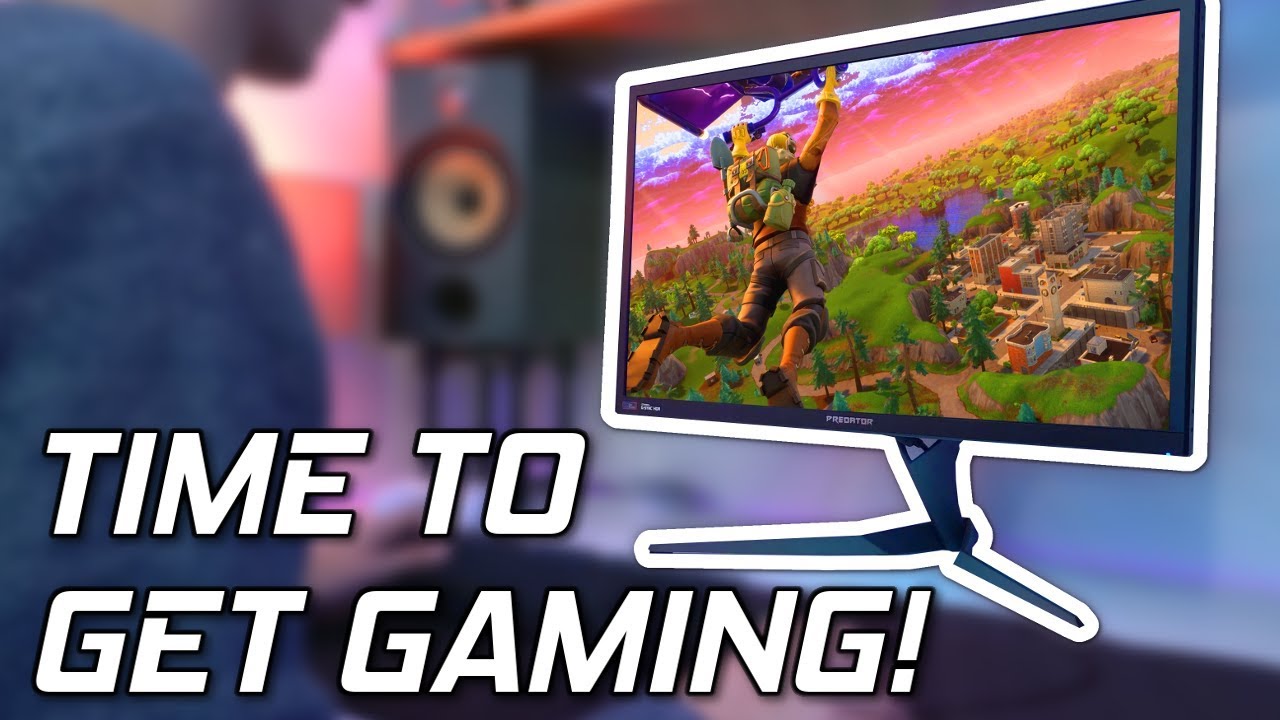
PC Centric’s “How To Setup A Gaming PC! 😎 – PC Gaming Explained” tackles the part of the process most build guides skip entirely: what happens after the tower is assembled and it’s sitting on your desk. The video, part of the channel’s beginner-focused “PC Gaming Explained” series, is aimed squarely at console converts and first-timers who just want their rig running Fortnite without frying anything or staring at a black screen. It walks through unboxing, cabling, powering on, and the handful of software steps that stand between a built PC and an actual gaming session.
- The guide skips internal component assembly entirely and instead focuses on physical setup, peripheral hookup, and initial software configuration.
- It flags the single most common beginner mistake: plugging the monitor cable into the motherboard’s video output instead of the dedicated graphics card.
- It covers powering on, basic OS navigation, installing graphics drivers, and preparing game launchers so the machine is actually ready to play.
From the Box to the Desk
PC Centric starts at the most literal point possible: the system arrives built, and the first job is placement and cabling. That means finding the right spot for airflow, connecting the monitor, keyboard, mouse, power cable, and audio, and making sure nothing is crimped or forced. It’s the same territory covered in InfoSearched’s look at pre-built gaming desktops, where the hardware itself isn’t the hard part — living with it day-to-day is.
The Graphics Card Cable Mistake Everyone Makes
The tutorial spends real time on one specific error: plugging the display cable into the motherboard’s built-in video port rather than the dedicated graphics card. On a system with a discrete GPU, the motherboard output is often disabled or bypassed entirely, so a monitor connected there can show nothing — or run on integrated graphics instead of the card you paid for.
Plug the monitor into the wrong port and the PC boots fine — the graphics card sitting in the case just never gets used.
It’s a small detail, but it’s the kind of thing that sends a first-time builder into a panic thinking their new rig is broken when the fix is just moving one cable to the right port.
Booting Up and Getting Drivers Installed
Once everything is connected correctly, the video moves into powering on the machine, getting through basic Windows navigation, and installing the graphics drivers that actually let the GPU perform at the level games expect. Skipping this step is another common trap — a system can technically run without updated drivers, but performance and stability both suffer until the correct GPU software is in place.
Getting Ready to Play
The last stretch of the guide covers setting up game launchers — the software layer between “the PC works” and “I’m actually playing something.” For a viewer motivated to get into Fortnite or another major live-service title, that means installing the relevant launcher, signing in, and letting the client handle the rest of the download and configuration.
PC Centric built this one for the person who’s never touched a desktop tower before, and it shows — every step assumes zero prior knowledge, right down to which port the monitor cable actually belongs in.




Turning a Treadmill Into a PS4 Controller So I Exercise
“PC Gaming Didn’t Just Die | It Was Murdered”…According to Nintendo Switch Fanboy
GameStop TV | July 2019 | PC Gaming Accessories
10 Best FREE iOS & Android Games of June 2019
Why You Should (And Shouldn’t) Buy PlayStation VR in 2019