

 InfoSearched
Eight settings buried in the Xbox One’s menus separate the pros from everyone else still playing on factory defaults.
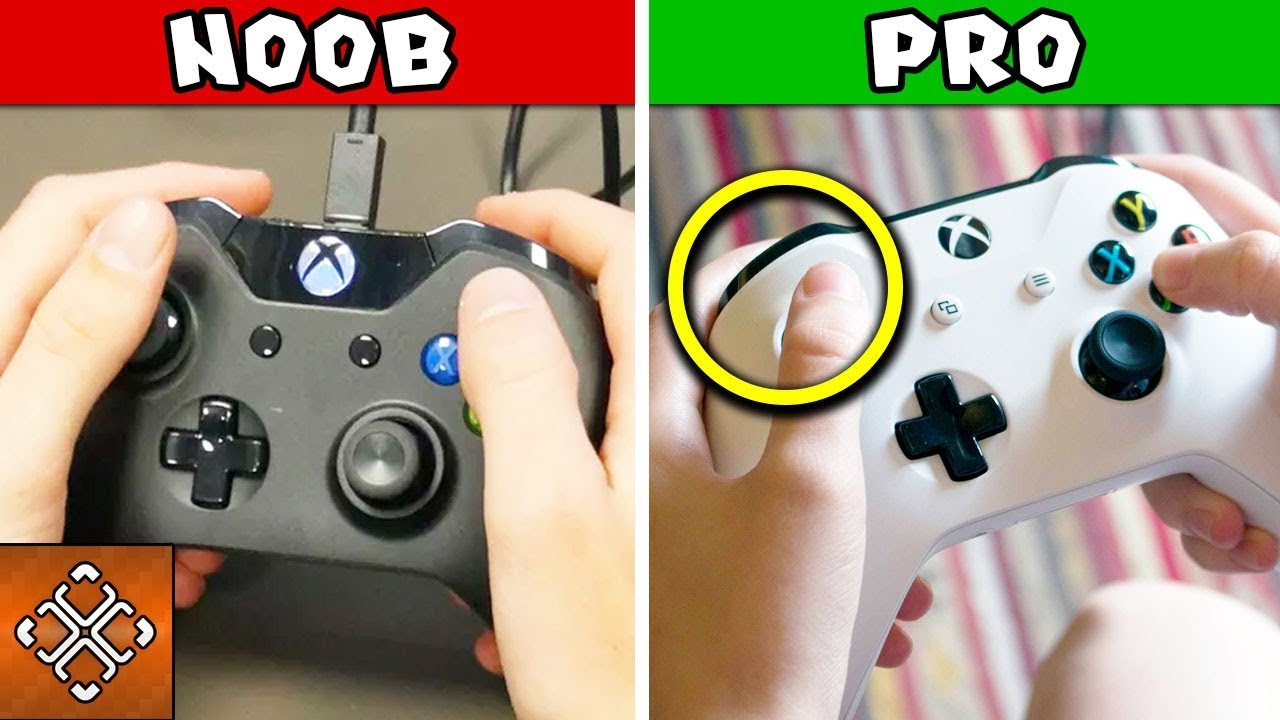
TheGamer’s YouTube channel put together a rundown called “8 Things Only Pro Gamers Know About The XBOX ONE,” and it’s less about hidden Easter eggs than it is about wringing every bit of performance out of hardware most owners never touch past the home screen. The video walks through display calibration, controller tuning, audio setup, and storage tricks that competitive players use to shave milliseconds and see cleaner images in firefights. None of it requires modding the console — just knowing where Microsoft buried the good stuff.
- The “Video Fidelity & Overscan” menu lets players fine-tune color depth between 24-bit and 36-bit, switch to RGB full range, and adjust sharpness and contrast for better visibility in dark multiplayer scenes.
- The Xbox Accessories app allows button remapping and thumbstick curve customization, a feature built heavily around the Xbox Elite Wireless Controller.
- Swapping the internal SATA II drive for an external SSD over USB 3.0 significantly cuts down load times, while manual DNS settings and clearing the console’s cached Blu-ray storage help reduce latency and input lag.
The through-line of the video is simple: the Xbox One’s out-of-the-box settings are built for the widest possible audience, not for someone trying to squeeze out an edge in ranked lobbies. TheGamer’s list treats the console less like a sealed black box and more like a PC with a controller — something you tune rather than just plug in.
Dialing In The Display
The first fix targets the screen itself. Instead of trusting a TV’s default picture mode, the video points viewers to Settings, then Display & Sound, then “Video Fidelity & Overscan,” where color depth can be pushed between 24-bit and 36-bit and switched to RGB full range instead of standard. Sharpness and contrast sliders live in the same menu, and TheGamer frames these as the difference between spotting an enemy crouched in a shadowed corner and missing them entirely because the console defaulted to a flatter, TV-friendly picture profile.
Controller Tuning Through The Accessories App
The second cluster of tips runs through the Xbox Accessories app, which unlocks remapping and thumbstick curve adjustments that aren’t available from the standard controller settings. The video leans on the Xbox Elite Wireless Controller specifically, since its swappable components and paddle layout give the app more to work with than a stock pad. For players building muscle memory around specific inputs, that level of control matters more than raw stick sensitivity ever will.
Pro-tier players treat the Elite controller’s remapping and curve settings the same way PC players treat a mouse’s DPI — it’s the setup, not the hardware, that wins the gunfight.
Spatial Audio And Network Cleanup
Sound gets its own section, with the video recommending Windows Sonic or Dolby Atmos for spatial awareness — the kind of positional cue that tells a player which stairwell footsteps are coming from before an enemy turns the corner. From there it moves into bandwidth housekeeping: manually configuring DNS settings and periodically clearing the console’s persistent Blu-ray and cache storage to knock down latency and input lag, two of the quieter culprits behind a controller that suddenly feels a half-step behind on-screen.
Storage And Load Times
The last stretch of the video covers hardware workarounds that don’t require touching a single menu. Power-cycling the console clears temporary system memory, a quick reset pros use between long sessions. The bigger swing is storage: running games off an external SSD connected via USB 3.0 instead of the Xbox One’s internal SATA II drive, which noticeably cuts load times — the kind of margin that matters when a match starts the second the map loads and everyone else is already moving.
None of these are secrets Microsoft hides — they’re settings buried a few menus deep that most players never open. Anyone curious how the Xbox One’s hardware choices stack up against the consoles that came before it can dig through the full breakdown of best-selling console generations from 1972 to 2019, and for players weighing whether the Elite controller and other add-ons are worth the investment, TheGamer’s category coverage of gaming accessories is the next logical stop.









Top 20 PlayStation VR Games | May 16, 2019
10 Video Games That Will Consume Your Life
Modern Warfare WARZONE Live Gameplay! (New Call of Duty Battle Royale)
????TOP 10 BEST FREE APPS: ADDICTING GAMES for iPhone X, 8 Plus, and Android !???? | Katie Tracy
HITMAN 3 – The End of A Journey (Developer Insights)